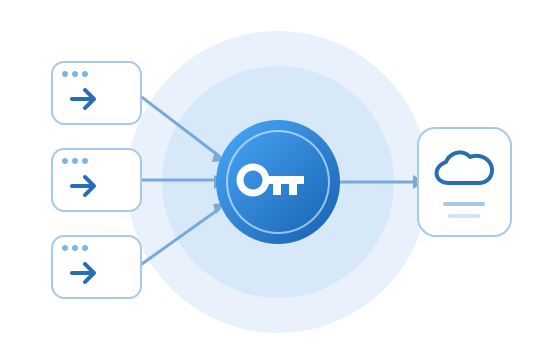
AI tools and Agents connect to OmniProxy.ai, which routes local models, cloud models, MCP services, and search.
AI tools and Agents
OpenClawCursorOpenCodeCodex CLI+ more AI tools
→
OmniProxy.aiOne gateway entryChange once
→
AI resources
Local modelsCloud modelsMCP servicesSearch
01
Changing a model's key means updating every AI tool?
Previously, when changing large models, whether swapping an API key or switching providers, you had to update every AI tool you were using one by one. Now, you only need to make the change in OmniProxy.
AI tools and large models, what are you whispering about?
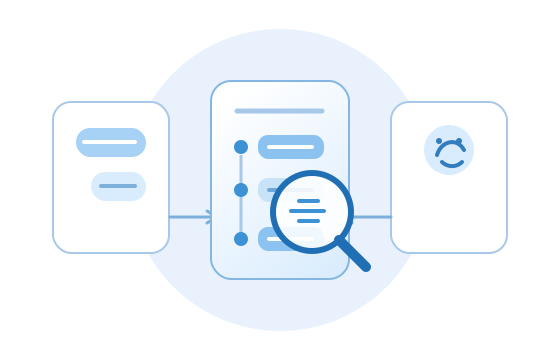
Seeing the details of each exchange between an AI tool and a model is an effective way to learn how AI works. When you give an AI tool a task, you usually see only part of the model’s response. Open OmniProxy to see how the tool and model communicate.
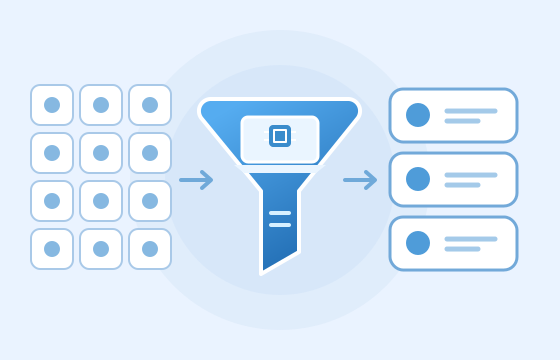
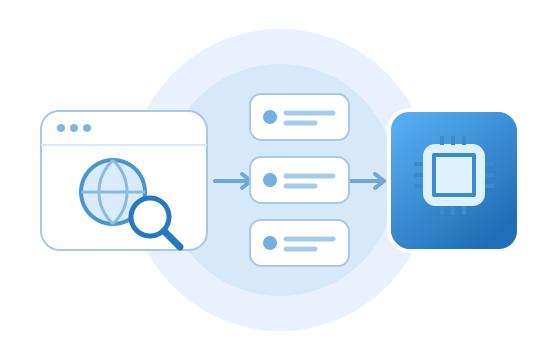
Classify models and filter the ones available to users based on their current devices, helping users quickly find a local model that suits them among tens of thousands of open-source models.
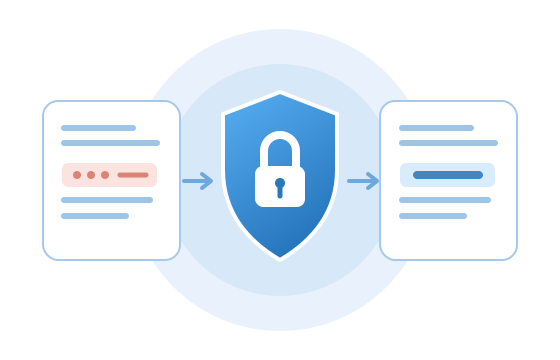
Set text redaction rules for each external source. When enabled, sensitive text such as passwords, phone numbers and other sensitive information will be replaced with redaction markers before being sent to the corresponding source, helping reduce the risk of privacy and confidential information leaks.
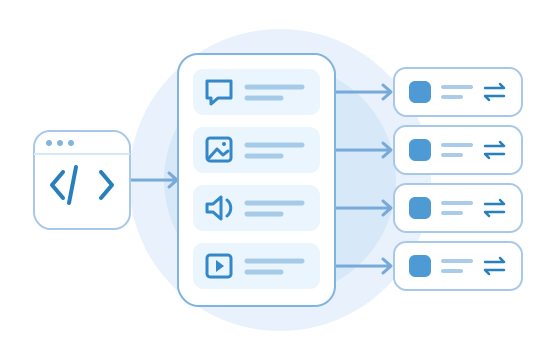
Chat, image generation, read-aloud and video generation each have a fixed model entry. Want to try a new model? Just change the corresponding selection in OmniProxy, and AI tools continue using the original entry, saving you the hassle of reconfiguring.
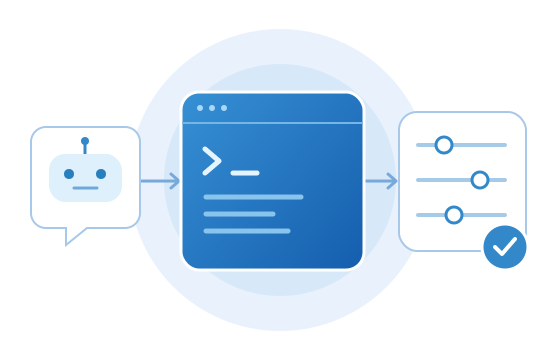
Checking status and adjusting settings doesn't mean you have to find options or look up commands yourself every time. Let a command-capable AI tool do it for you through the OmniProxy command line, hand repetitive configuration work to AI, and free up time for your own tasks.
OmniProxy.ai connects AI tools, models, and services through one gateway, bringing keys, model mapping, call logs, search, translation, and redaction together.
OmniProxy · English (Australia) introduction video
Manage remote model settings and keys in one place
When changing model providers, there's no need to update each AI tool's configuration one by one, nor to scatter model keys across different tools. Connection settings are managed centrally in OmniProxy, and keys are stored in the Mac system Keychain.
Record every interaction between AI tools and models
Read the chat history between AI tools and models to gain a deeper understanding of how AI tools interpret tasks, organise requests and use model responses. This helps you use AI more effectively and provides clues for troubleshooting current issues.
Open-source models are organised by category and filtered for what your current device supports, helping you choose faster. You can specify multiple model folders and directly use models that other tools have already downloaded, reducing duplicate downloads. You can also download models to an external drive or network drive to save local storage space.
Mask sensitive information before sending to remote models
Replace sensitive information identified by rules, such as phone numbers, bank account numbers and passwords, with xxxxxx to prevent this content from being sent to remote services along with your requests.
Connect to a web search service so AI can access new information beyond its existing knowledge, while also providing webpage summaries and original links so you can check sources and verify the basis of answers.
Provide a professional glossary feature for translation
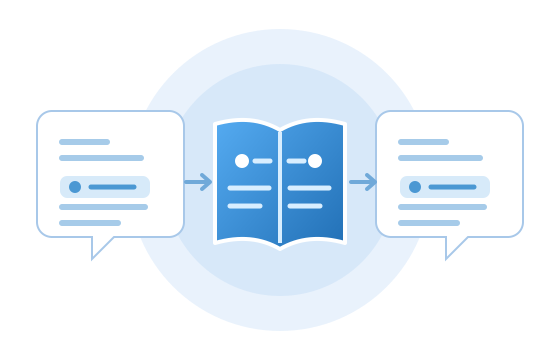
Keep product names, industry terms and common expressions consistent, reducing the frustration of seeing the same word translated differently across paragraphs. Build a glossary from translations you approve and reuse it in supported translation workflows, reducing the repeated work of correcting terminology in each document.
Set fixed model entries for purposes such as chat, text-to-image, read-aloud and video generation. AI tools only need to connect to the corresponding entry. If you later want to change the model for that purpose, simply switch it in OmniProxy without modifying the AI tool's calling configuration.
Want to use local and cloud models in the same chat window but are concerned that deployment and connection setup will be too complicated? Open WebUI provides a familiar chat interface. Once installed, you can start using it by entering the connection details step by step.
Want an AI assistant that can read files, write content, or handle repetitive tasks without being limited to a web browser? goose offers both desktop and terminal versions. Once installed and configured with a model, it is ready to use on your own computer.
Want to install an AI assistant on your own computer but are concerned about setting up the environment or switching models? OpenClaw provides a desktop app and installation scripts, allowing you to use it from a messaging app or terminal after installation.